Your stream. Your controls. Your spare device.
Turn your tablet into a stream control deck.
Streaming solo? Put Gooverlay on a second device. Tap to show a text overlay, run a timer, and stay focused on your stream.
Use a phone, tablet, or spare computer with a supported modern browser and internet connection.
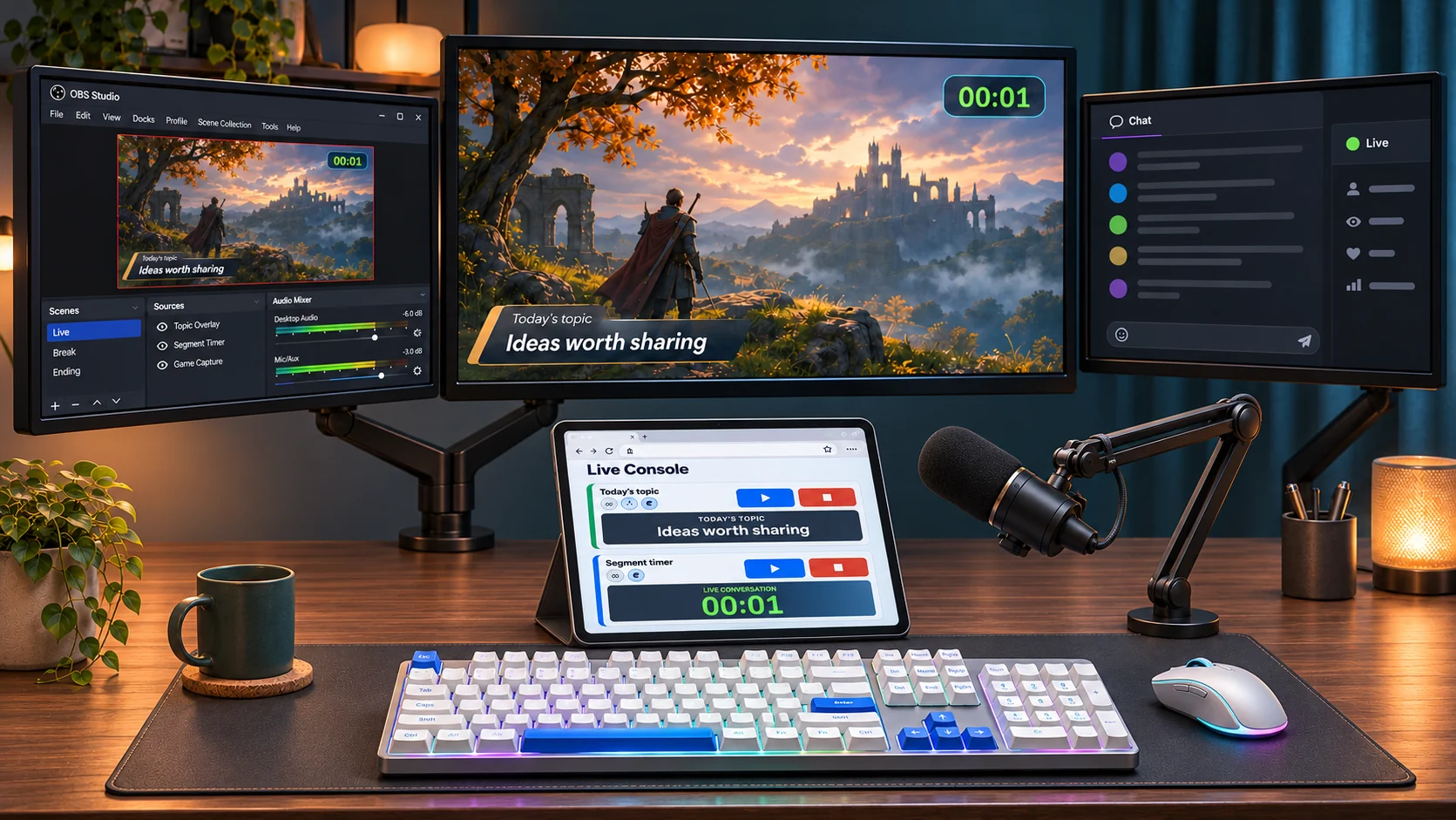
Watch the workflow
Tap here. Show it live.
See text overlays and a timer controlled through the real Gooverlay Live Console.
36-second guide with English narration and on-screen captions. Works with sound off, too.
Read the video transcript
Streaming solo? Your desktop already has enough going on. Turn your tablet into a stream control deck with Gooverlay. Open Live Console on your second device. Tap to show a text overlay. Start your timer, then hide the text. No extra operator needed. Close the dashboard on your PC to reduce browser workload. OBS still renders your overlays. Give your spare device a new job. Try Gooverlay.
One person can run the show.
Prepare your widgets before the stream. Keep the controls within reach and trigger your own overlays without needing another operator.
Give your desktop room.
Keep the game, OBS, or your presentation in view. Move the control dashboard to a device beside you instead of juggling another window.
Move the dashboard off your PC.
Closing the control dashboard on the streaming PC can reduce its browser workload. OBS still renders the overlay; performance depends on your setup.
Ready before you go live
Three steps. A second screen.
Set up your stream output.
Prepare your widgets in Gooverlay. Add your Gooverlay output URL to OBS as a browser source on your streaming PC.
Open Gooverlay on your other device.
Sign into the same account in a supported modern browser. Open Live Console and select your workspace and live scene.
Take the controls with you.
Test showing and hiding a text overlay and starting your timer. Keep OBS running, then close the control dashboard on the streaming PC.
Keep the second device connected and awake. Test the browser and touch controls before every stream. Widget availability and workspace limits follow your plan.
A few practical answers
Your second-device setup, explained.
Can I use my phone or tablet as a stream control deck?
Yes. Use a phone, tablet, or spare computer with a supported modern browser and internet connection. Sign into your Gooverlay account and open Live Console. Device age, browser support, screen size, and connection quality affect the experience.
Can I use this when I stream alone?
Yes. You can prepare your overlays before going live, then trigger them yourself from a second device. You do not need a moderator or another operator.
Will this make my streaming PC faster?
Moving the control dashboard to another device reduces desktop clutter and can reduce browser workload on your streaming PC. OBS still renders the overlay browser source. Results depend on your setup; Gooverlay does not promise higher FPS or a particular CPU saving.
Is this the same as an Elgato Stream Deck?
Gooverlay gives you a browser-based control-deck workflow for Gooverlay overlays. It is not a general desktop macro tool and does not provide the full Elgato Stream Deck feature set. It does not switch OBS scenes or control arbitrary desktop programs. Gooverlay is not affiliated with Elgato.
Does the dashboard have to stay open on my streaming PC?
No. Keep OBS and its Gooverlay browser source running on the streaming PC. After setup, use Live Console on your second device and close the control dashboard on the PC.
What do I need before going live?
An active Gooverlay account, widgets prepared in your workspace and live scene, your Gooverlay output URL added to OBS as a browser source, and a connected second device signed into the same account. Available widgets and workspace limits depend on your plan.
Make room for what matters
Your spare device has a new job.
Bring your overlays within reach. Keep your attention on the stream.
Open Gooverlay More questions? Read the FAQ